
THE WEBSITE EDITION · RECOMMENDED
Your next engineering workspace.
Get the direct website edition with prerequisite and plugin checks, missing supported SDK detection and supported SDK setup assistance.
Currently approved trial package: 0.27.61
The actual application capture previews the 0.30.0 interface. It does not mean 0.30.0 is the currently downloadable release.
Installation & publisher verification →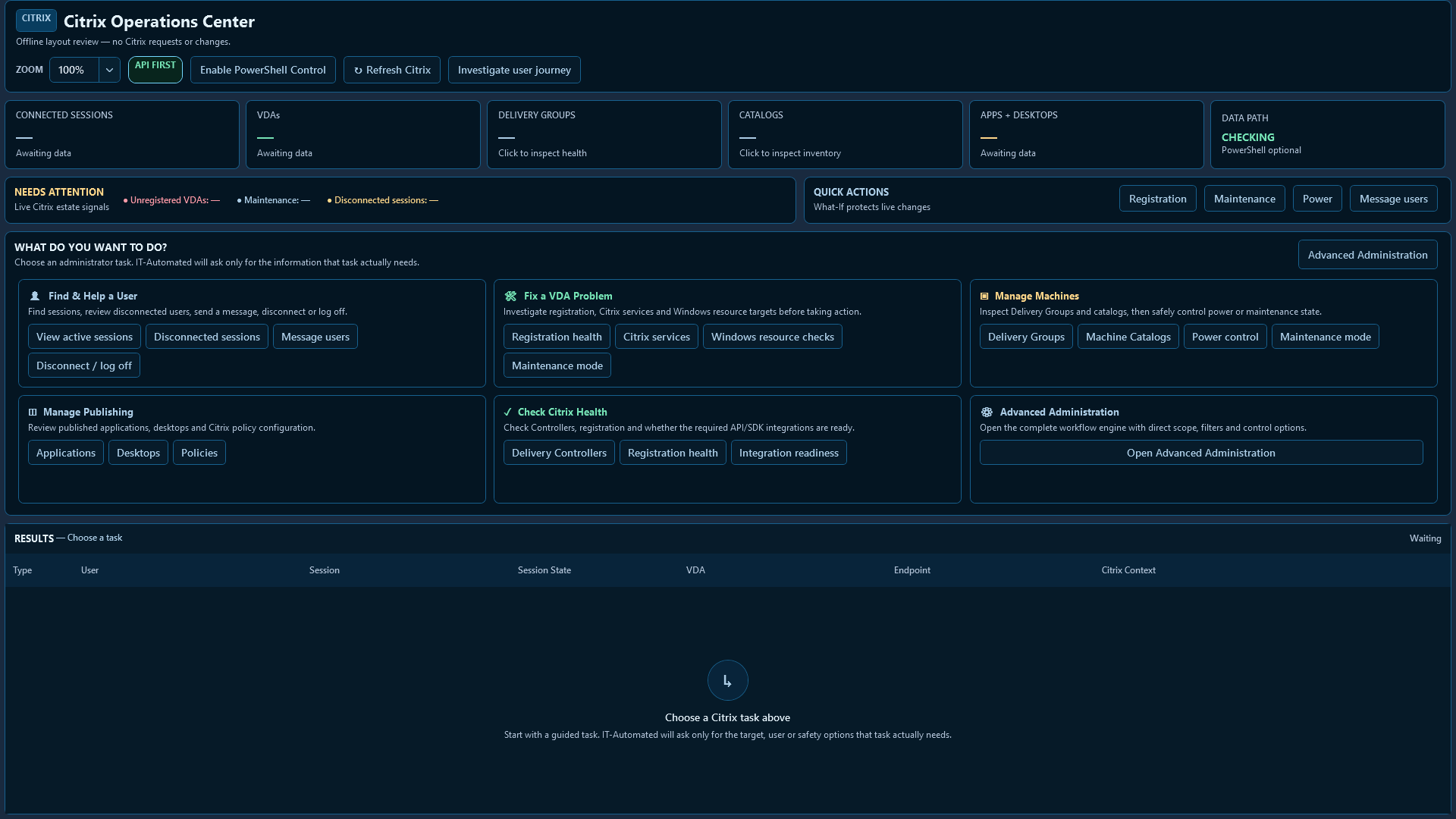
Try it free. Buy it when you’re ready.
Get IT-Automated onto your Windows PC in minutes. Start the 7-day Professional trial with no card and no account, or purchase Professional now through secure Paddle checkout.
No forms. No sales call. No waiting.
The trial is deliberately simple: download the current approved package, run IT-Automated, and the licensing service starts the seven-day trial for that computer.
Download
Download the approved IT-Automated Windows package directly from this page.
Current staging build: 0.27.61 · 64.9 MBRun IT-Automated
Extract or install the package and open IT-Automated on the computer you want to evaluate.
Installation guide →Trial starts automatically
The desktop licensing service validates the computer and starts its seven-day Professional trial. No licence key is needed for the trial.
Choose a plan and checkout securely.
Both Professional plans include all current modules, eligible updates, support and up to three active devices. The only choice is how you prefer to pay.
Professional Annual
One annual payment. Full Professional access and the simplest renewal cycle.
- All current modules
- Eligible updates
- Basic product support
- Up to 3 active devices
Professional Monthly
Full Professional access with a lower month-to-month commitment.
- All current modules
- Eligible updates
- Basic product support
- Up to 3 active devices
Choose Annual or Monthly and the selected Paddle checkout opens automatically. Paddle handles payment, taxes and receipts.
From payment to activated licence without guesswork.
Payment confirmation
Paddle confirms the purchase and IT-Automated creates your Professional entitlement.
Set your portal password
Use the IT-Automated welcome email to set your Customer Portal password. Your email address is your sign-in.
Copy your licence key
Open Customer Portal → My Licences and use the Copy licence key button.
Activate and continue
Enter the paid licence key in IT-Automated. Your paid entitlement replaces trial/read-only access.